








How to Enable Microsoft Teams SMS: Brand, Campaign, and Activation


Native Microsoft Teams SMS is not a single toggle. To enable Microsoft Teams SMS you register a Brand, register a Campaign with The Campaign Registry (TCR), wait for both to show Approved, then select Enable SMS on eligible Calling Plan numbers. Microsoft documents that path in SMS overview, SMS management, Create a Brand, and Set up a Campaign.
Last week we covered why a number can show Not available. This guide is the complementary recovery path: what “enable” actually means, the prerequisites before the button appears, Brand and Campaign approval, activation timing and SMS statuses, and the limits that still apply after Activated.
If you need real microsoft teams sms on Direct Routing or Operator Connect numbers, not just Calling Plans, start here: microsoft teams sms.
In this article:
What “enable Microsoft Teams SMS” actually means
SMS for Teams Calling Plans lets users in the United States (including Puerto Rico) and Canada send and receive SMS inside Teams Chat. Microsoft notes that SMS for Teams Calling Plans in those regions is currently being rolled out for general availability.
All Teams SMS is treated as business messaging, non-consumer messaging, and Application-to-Person (A2P) messaging. In the US, A2P traffic goes through the 10DLC network. Before Microsoft can enable Calling Plan numbers for SMS, TCR must approve two things about your company:
- Brand: who you are (company identity).
- Campaign: why you are messaging (use case and compliance content).
Enable SMS is the third step. It turns SMS on for a specific phone number after Brand and Campaign are Approved. It does not invent SMS on Operator Connect or Direct Routing numbers, resource account numbers, toll-free numbers, short codes, or alphanumeric sender IDs. Those stay outside native Calling Plan SMS.
Prerequisites before the Enable SMS button appears
Microsoft’s management and overview articles list hard prerequisites.
| Prerequisite | Why it matters |
|---|---|
| Brand Approved | TCR must approve company identity before any number can be enabled. |
| Campaign Approved | TCR must approve the UCaaS Low Volume campaign before Enable SMS. |
| Teams + Teams Phone + Calling Plan | SMS capability rides on Microsoft Teams Calling Plans for supported regions. |
| Voice-enabled user | Enterprise Voice On (admin center or Set-CsPhoneNumberAssignment -EnterpriseVoiceEnabled $true). |
| Number assigned to a user | Not a resource account. Resource account numbers typically show Not available. |
| US (incl. Puerto Rico) or Canada Calling Plan number | Native SMS geography is limited to those regions. |
| Public cloud | SMS is available in public clouds, not GCC. |
| Admin RBAC | Teams Administrator, Teams Communications Administrator, or Teams Telephony Administrator. |
If Brand or Campaign is still Submitted, Pending Customer Update, or Microsoft Support Engaged, Enable SMS will not complete the path Microsoft documents. Fix registration first.
Billing for overages (and for Pay-as-you-go Calling Plans) also needs a funded mechanism: prepaid Communication Credits on MOSA-style accounts, or postpaid cost management on MCA accounts. Partners may bill PAYG differently.
Step 1: Create and approve your Brand
In the Teams admin center go to Voice → Service configuration → SMS → Step 1: Create brand. Select Create your brand (or Update / View details) and fill the form with legally accurate company data.
Microsoft’s Brand setup asks for legal name, display (DBA) name, tax ID issuing country, tax ID (US EIN, Canadian BN, or numeric VAT outside US/CA), legal address, website, organization legal form, brand segment, and a support contact in E.164 phone format plus email. Publicly traded companies also provide stock symbol, exchange, and a business email for two-factor authentication from noreply@auth.campaignregistry.com.
Accept Microsoft’s terms (Microsoft may share Brand details with the Operator / TCR), then Submit. Status becomes Submitted and fields lock. Microsoft says brand review may take about two business days for informational purposes; timelines vary. Outcomes you will see:
- Approved. Move to Step 2: Create a campaign.
- Microsoft Support Engaged. TNS opens a case in Phone Number Service Center. High-volume note: rejected Brand or Campaign rework through TNS may take 4 to 6 weeks.
Brand registration for US Government entities and Sole Proprietor entities is not currently supported. Non-US nonprofits should register as private companies. One Brand and one Campaign are allowed per tenant.
Step 2: Create and approve your Campaign
After Brand is Approved, go to Voice → Service configuration → SMS → Step 2: Create Campaign. Microsoft’s Campaign setup fixes the use case to Unified Communications as a Service (UCaaS), Low Volume. You cannot change it.
That registration is only for SMS-enabled phone numbers assigned to individual employees for 1:1 conversations. It does not support marketing, bulk messaging, automated alerts, or API-driven interactions.
You must submit:
- Campaign description (what you send and to whom).
- Public SMS privacy policy link (including that mobile opt-in information will not be shared with third parties for marketing).
- Public SMS terms link (brand name, message types, frequency, msg and data rates, HELP, STOP).
- Call to action describing verifiable opt-in (web, keyword, or verbal) with the same disclosures.
- Sample messages aligned to the use case (opt-out language in at least one; embedded link in a sample if you declare embedded links).
- Required automated Opt-In, Opt-Out, and Help messages.
- Content attributes (lending, embedded links, embedded phone numbers, age-gated content). Public URL shorteners are not accepted.
Submit, then wait. Statuses include Draft, Submitted, Approved, Microsoft Support Engaged, Pending Customer Update, Denied, and Cancelled. You can edit and resubmit while Draft or Pending Customer Update, with a maximum of four submissions. After the fourth attempt the campaign can be permanently denied.
Default campaign capacity is up to 49 SMS-enabled numbers. Need more? Request a number pool while the campaign is still Draft or Pending Customer Update (target count plus estimated SMS per day). After approval, pool verification may take up to 20 business days. If the campaign is already Approved, you cannot request a pool in the admin center; contact Microsoft support. Non-profit brands are not currently eligible for number pool expansion.
Microsoft also notes processing times for Brand and Campaign approvals may be longer than usual because of high request volume.
Step 3: Enable SMS on Calling Plan numbers
With Brand and Campaign Approved, open Voice → Phone numbers → Numbers. Select an eligible user-assigned Calling Plan number and choose Enable SMS in the contextual menu above the list.
You can also activate from PowerShell with Set-CsPhoneNumberSmsActivation:
Set-CsPhoneNumberSmsActivation -TelephoneNumber +123456789
The cmdlet returns an OrderId for the asynchronous activation operation. To turn SMS off later, use Remove-CsPhoneNumberSmsActivation, or Disable SMS in the admin center.
If the number is not assigned yet, assign it to a voice-enabled user first. Enabling SMS on a number that will end up on a resource account (call queue or auto attendant) is the wrong shape for native SMS. Those numbers typically stay Not available.
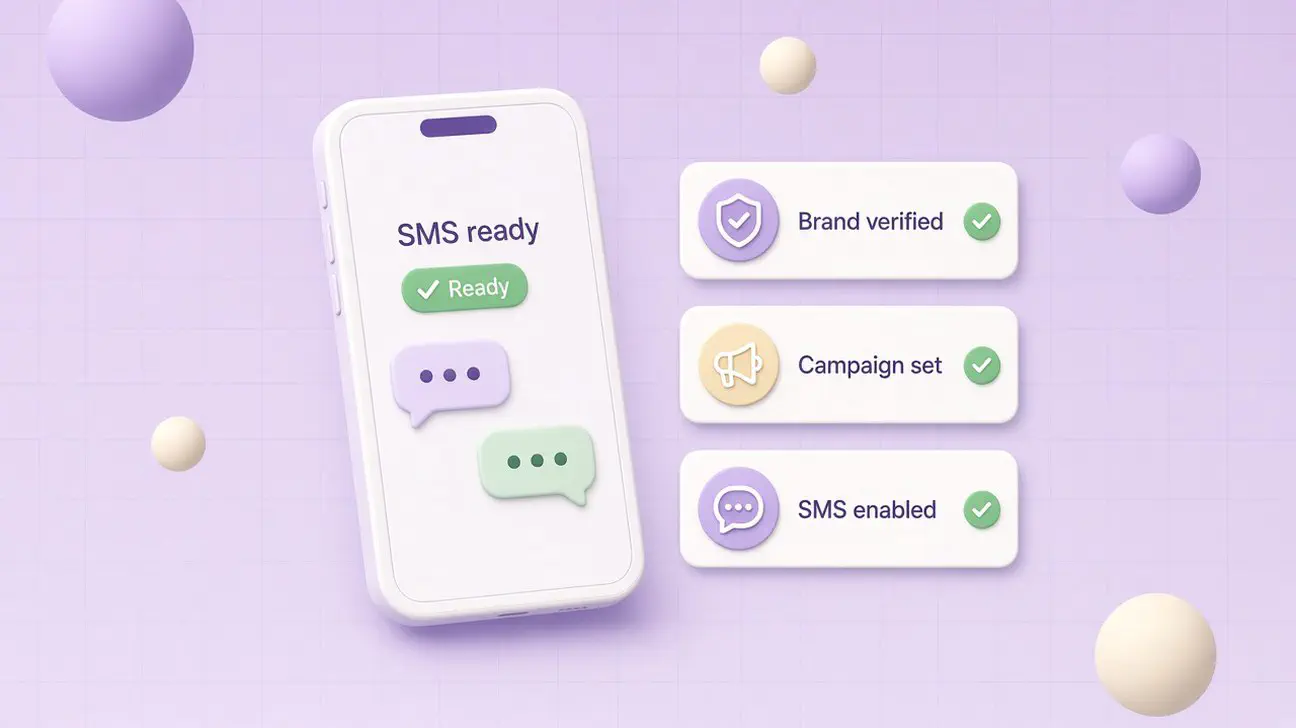
How long activation takes and what each SMS status means
Microsoft’s SMS status table is the source of truth in Voice → Phone numbers → Numbers:
| SMS status | Meaning |
|---|---|
| Not available | SMS is not available on this number (for example resource account assignment, or the number itself does not support SMS). |
| Not Activated | SMS is available, but you have not enabled it yet. Enable SMS is the next action. |
| In Progress | Activation is running and may take up to two hours. |
| Activated | SMS is on. Users can send and receive in 1:1 Teams Chat. Disable SMS turns it off. |
If you are stuck on Not available after Brand and Campaign approval, revisit number type and assignment. Our Not available troubleshooting guide walks through Calling Plans versus Operator Connect, resource accounts, and geography.
Itemized usage lives under Reports & analytics → Usage reports → PSTN and SMS Usage.
Limits that still apply after Activated
Activation does not lift the product boundaries Microsoft publishes:
- 1:1 chat only. No group SMS threads.
- No MMS, attachments, emojis, stickers, or GIFs.
- Sender type is 10-digit long code only. No toll-free, short code, or alphanumeric sender ID.
- Geography. Send and receive with SMS-capable numbers regionally assigned in the US or Canada. Teams users sending or receiving SMS outside US/CA are not supported.
- Public cloud only, not GCC.
- One Brand and one Campaign per tenant.
- Opt-in keywords enforced: START, HELP, and STOP, QUIT, END, REVOKE, OPT OUT, CANCEL, UNSUBSCRIBE are monitored for SMS in Teams.
SMS pools and overage
Message segments are 140 bytes or 160 GSM-7 characters. Longer messages split into multiple segments, and each segment counts.
| Teams Calling Plan | Included SMS (before overage) |
|---|---|
| Pay-as-you-go | 0 |
| Domestic 120 | 100 |
| Domestic | 200 |
| Domestic + International | 200 |
| Teams Phone + Calling Plan Bundle | 200 if purchased as Calling Plan bundle; 0 if PAYG bundle |
Allotted inbound plus outbound SMS messages are pooled at the tenant for identical Calling Plans. Overage applies only after that shared pool is consumed. Microsoft lists overage at $0.0075 USD per segment for the United States and Puerto Rico, and $0.01028 CAD per segment for Canada (send and receive). Carrier 10DLC surcharges also apply; they are included in allotted messages and added on overages.
Carrier rate limits (examples)
Operators enforce campaign and brand rate limits. Microsoft’s overview cites examples for UCaaS Low Volume:
- AT&T: 75 SMS per minute per campaign (fixed for low volume).
- T-Mobile: 2,000 SMS per day per brand (fixed for low volume).
If you regularly hit caps with warranted volume, contact Microsoft Telephone Number Services (TNS) Service Desk about a rate limit increase.
When native enablement is enough vs when you need a Teams messaging layer
Native enablement is enough when:
- Your numbers are Microsoft Teams Calling Plan numbers in the US, Puerto Rico, or Canada.
- Texting is 1:1 on employee-assigned user numbers.
- Plain SMS (no MMS) is acceptable.
- Brand and Campaign approval, a 49-number default (or approved pool), and carrier rate limits fit the workload.
You need a Teams messaging layer when customers text Operator Connect or Direct Routing numbers, shared department or call queue / resource account numbers, or when you need shared inbox, MMS, or automation beyond UCaaS Low Volume 1:1 employee chat. Native Enable SMS does not convert those number types into Calling Plan SMS.
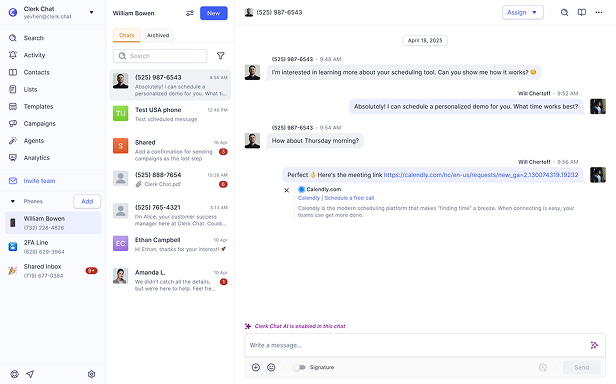
Clerk Chat is that messaging layer for Teams beside Teams Phone: SMS and MMS on Teams numbers that native Calling Plan SMS does not cover, with a shared workspace for coordinators. It does not replace Brand or Campaign registration for tenants that only need native user-number SMS.
Frequently Asked Questions
How do I enable Microsoft Teams SMS?
Approve a Brand and a Campaign under Voice → Service configuration → SMS, then select Enable SMS on an eligible Calling Plan number under Voice → Phone numbers, or run Set-CsPhoneNumberSmsActivation -TelephoneNumber +1.... Brand and Campaign must be Approved first.
Why is Enable SMS missing or greyed out?
Usually Brand or Campaign is not Approved yet, the number is Not available (resource account, wrong number type, or unsupported region), licensing is incomplete, or the user is not voice-enabled. Confirm the SMS status column and registration steps before chasing the button alone.
How long does SMS activation take?
Microsoft says activation In Progress can take up to two hours. Brand review is often described as about two business days. Campaign review by 10DLC operators may take up to 20 business days. Rejected Brand or Campaign work through TNS may take 4 to 6 weeks under the current high-volume service update.
Does native Teams SMS work on Operator Connect or Direct Routing?
No. Microsoft documents native SMS as available on Calling Plan phone numbers in the United States (including Puerto Rico) and Canada only.
Can call queue or auto attendant numbers get native SMS?
Typically no. Those numbers sit on resource accounts, and Microsoft lists resource account assignment as a Not available reason. See auto attendant and call queues for the voice side of that split.
What is the default campaign number limit?
Up to 49 SMS-enabled numbers per campaign by default. Request a number pool before the campaign is Approved (or contact Microsoft support if it is already Approved). Pool verification after approval may take up to 20 business days.
Which PowerShell cmdlet activates SMS?
Set-CsPhoneNumberSmsActivation -TelephoneNumber <E.164>. It returns an OrderId for the async operation. Use Remove-CsPhoneNumberSmsActivation to deactivate.
Are HELP and STOP required?
Yes. Campaign registration requires Opt-In, Help, and Opt-Out automated messages. Microsoft monitors and enforces START, HELP, and STOP (plus QUIT, END, REVOKE, OPT OUT, CANCEL, UNSUBSCRIBE) for SMS in Teams.
The Bottom Line
To enable Microsoft Teams SMS you do three Microsoft-documented steps: create and approve a Brand, create and approve a UCaaS Low Volume Campaign, then Enable SMS on user-assigned Calling Plan numbers in the US, Puerto Rico, or Canada. Activation can sit In Progress for up to two hours. After Activated you still have 1:1 plain SMS, pool and overage rules, carrier rate limits, and no MMS.
If your numbers are Operator Connect, Direct Routing, or resource accounts, native enablement will not appear as Activated no matter how clean the Brand form is. That is an architecture limit, not a missed click.
Need SMS on the Teams numbers native Calling Plans cannot activate, with a shared inbox for the team? See the Microsoft Teams integration page or Book a demo and we will map Brand, Campaign, Calling Plan coverage, and where a messaging layer still belongs.
#Subscribe
Get product updates in your inbox
Tutorials, features, and Clerk Chat news delivered straight to you.