












Teams Call Groups: Ring Order, Limits, Admin Setup, and the December 2026 Mobile Update


Teams call groups let a Teams Phone user share incoming calls with up to 25 colleagues, so someone can pick up when the owner is busy, away, or out of the office. Until now, users could only build and edit a call group from Teams desktop or web, or ask an admin to do it in the Teams admin center. Microsoft 365 Roadmap ID 578860, published November 3, 2026, adds call group management to Teams on iOS and Android, with general availability planned for December 2026.
That makes this a good moment to revisit how call groups actually work. The feature has hard limits that trip people up: one group per owner, ordered ringing only up to five members, and no external phone numbers as members. It also sits beside forwarding, simultaneous ring, delegation, call queues, and the new AI call screening tools, and it is easy to pick the wrong one.
This guide covers what call groups are, the limits Microsoft documents, how ring order and notifications work, how users and admins set them up, what the mobile update changes, how call groups compare to other Teams Phone routing options, and the gap that remains when the people in the group also get customer texts.
In this article:
What Teams Call Groups Are
A call group is a list of colleagues who can answer calls on a user’s behalf. Microsoft’s Teams Phone features page describes it this way: users create a group of members who can receive calls on their behalf, then designate that call group for simultaneous ring or for call forwarding. The group can ring everyone at once or follow an order the user defines.
Microsoft’s admin documentation calls the feature call sharing and group call pickup. The idea is that the owner keeps their own number, and the group acts as a safety net for calls the owner cannot take.
Typical uses include:
- Front desk coverage. A manager’s direct line rings two assistants when the manager is on another call.
- Small team coverage. A sales rep’s line rolls to the rest of a three or four person pod when unanswered.
- Executive support. An executive forwards all calls to a small group of admins during travel days.
Microsoft says group call pickup is less disruptive than other forms of call sharing, because members choose how they are notified of a shared call and decide whether to answer it.
Call Group Limits and Requirements
Microsoft’s call sharing article lists these limitations:
| Limit | Value |
|---|---|
| Call groups a user can own | 1 |
| Members per call group | Up to 25 |
| Call groups a user can be a member of | Up to 25 |
| Ordered ringing | Only with 5 or fewer members |
| Ring order with 6 or more members | Automatically switches to Everyone at once |
A few requirements apply on top of those limits:
- License. Users must have a Microsoft Teams Phone license to set up and use call sharing and group call pickup.
- Teams Only mode. The owner and every member must be in Teams Only deployment mode.
- Internal members only. Microsoft’s support article says you need to add people from your organization, and phone numbers are not supported as members.
- Policy setting. Admins control access with the AllowCallGroups setting in the Teams calling policy.
The member limit is the one most teams hit first. If a group needs to cover more than 25 people, or callers should wait in line for the next free agent, that is a job for a Teams Phone call queue, not a call group.
Ring Order and Member Notifications
Call groups have two ring order options:
- Everyone at once. All members are alerted at the same time.
- In the order below. Members are alerted one after another in the order the owner sets. This option only works with five or fewer members.
The PowerShell values for the same settings are Simultaneous and InOrder, documented in Set-CsUserCallingSettings. Microsoft notes that InOrder can only be used if the call group has five or fewer members.
Each member then controls how they are alerted for that group. The notification types are Ring, Banner, and Mute. A member can also set a group notification override. If the override is set to Mute, it silences that member for every call group they belong to.
Three details are worth knowing before you roll call groups out:
- Notifications start off. Microsoft’s support article says call group notifications are off by default for members. Members turn them on from the Calls app quick settings menu.
- Mobile needs banner and ring. Mobile devices only get call group notifications when they are set for banner and ring.
- SIP devices are limited. SIP devices only support Ring and Mute for group call pickup. Banner is suppressed, because SIP Gateway does not support alerting without ringing.
How to Set Up a Teams Call Group
As a user in Teams desktop or web
Microsoft’s support article lists these steps:
- Select Settings and more next to your profile picture, then select Settings > Calls.
- Under Manage call group, select Add a call group. If you already have one, select Edit.
- Under Add people, add up to 25 people from your organization.
- Choose a ring order: Everyone at once or In the order below. For ordered ringing, drag members into the order you want.
- Under Call handling and forwarding, choose when the group rings. You can forward calls to the group, ring the group at the same time as you, or send unanswered calls to the group.
The Calls app quick menu also shows a Forwarding to call group option once a group exists, so users can switch forwarding on and off without opening Settings.
As an admin in the Teams admin center
Microsoft’s admin article lists this path:
- Go to Users > Manage users and select the user.
- Open the Voice tab.
- Under Call answering rules, pick Group call pickup from the Also allow or If unanswered dropdown, or choose Be immediately forwarded and select Group call pickup as the forward type.
- Select Manage call group, then Add people.
- Set each member’s notification type (Ring is the default) and the call group order, then save.
Microsoft adds a cleanup warning: when you turn off call groups for users, clean up the call group relationships in the Teams admin center to avoid incorrect call routing.
With PowerShell
Admins can script call groups with Set-CsUserCallingSettings and Get-CsUserCallingSettings. Microsoft’s example creates a two-member group with ordered ringing and turns on immediate forwarding to it:
$cgm = @("sip:user2@contoso.com","sip:user3@contoso.com")
Set-CsUserCallingSettings -Identity user1@contoso.com -CallGroupOrder InOrder -CallGroupTargets $cgm
Set-CsUserCallingSettings -Identity user1@contoso.com -IsForwardingEnabled $true -ForwardingType Immediate -ForwardingTargetType Group
Two behaviors matter for scripts. First, CallGroupTargets always overwrites the full member list, so read the current members, change them, and write the complete list back. Second, membership lives on the owner’s account, while each member’s notification setting lives on the member’s account and is changed with the GroupMembershipDetails parameter.
What the December 2026 Mobile Update Changes
Roadmap item 578860, titled Microsoft Teams: Manage call groups on Mobile, says users will be able to create and manage their call group directly from Teams on mobile. According to the roadmap entry, users can:
- Add or remove call group members.
- Configure how the group should ring.
- Choose to forward or simultaneously ring incoming calls to their call group.
| Detail | Value |
|---|---|
| Roadmap ID | 578860 |
| Published | November 3, 2026 |
| Status | In development |
| Platforms | Android, iOS |
| Cloud | Worldwide (Standard Multi-Tenant) |
| Planned GA | December 2026 |
Microsoft’s stated reason is that users no longer need to switch to the desktop experience to manage how their calls are handled. For people who live on their phone, such as field staff or users on Teams Phone Mobile, that removes a common help desk ticket. The roadmap entry does not say the member limits or ring order rules change, so plan around the existing 25 member and five member ordered ring limits.
A related mobile change is coming in the same window. Message Center post MC1540349 says Teams mobile users will be able to decline an incoming call and send a quick message, rolling out from early December 2026. Microsoft notes it will not apply to PSTN, anonymous, or interoperability calls, because those callers have no Teams chat to receive the message. A customer who calls your business number will not get that reply.
Call Groups vs Other Teams Phone Routing Options
Call groups are one of several ways to share or redirect calls in Teams Phone. Here is how they compare:
| Option | Who answers | Best for | Key limit |
|---|---|---|---|
| Call forwarding | One person, number, or voicemail | Sending all calls somewhere else | One target at a time |
| Simultaneous ring | You plus one contact, number, group, or delegates | Ringing a mobile or a backup at the same time | Delay up to 20 seconds |
| Call group | Up to 25 colleagues | Small team coverage of one person’s line | One group per owner, internal members only |
| Call delegation | Named delegates who can call on your behalf | Executive and admin pairs | Set up one delegator at a time |
| Call queue | Agents on a shared resource account number | Department or main lines with holding callers | Needs a resource account |
| Intelligent call delegation | AI attendant | Screening calls on a personal line | Replaces existing call routing settings when on |
Two notes on that table. As covered in our intelligent call delegation guide, Microsoft’s support article says turning it on replaces your existing call routing settings, so AI screening takes over from a call group instead of running beside it. And if a user has several numbers through multi-line calling, the new call history tabs show activity per line, but the call group itself still belongs to the user.
The Gap: Call Groups Share Calls, Not Texts
A call group shares incoming voice calls. It does nothing for text messages sent to the same number.
That matters because the lines people put in call groups are usually customer facing: a manager’s direct line, a sales pod, an executive’s number on a business card. Customers text those numbers too. Microsoft’s SMS management article says native texting in Teams is only available on Calling Plan phone numbers in the United States, including Puerto Rico, and Canada, after Brand and Campaign registration. Numbers on Operator Connect or Direct Routing are not covered, and numbers assigned to a resource account show an SMS status of Not available.
Even on a supported number, there is no call group equivalent for messages. Native texting is a one-to-one chat on the user’s own number. The colleagues who cover the owner’s calls cannot see or answer the texts that arrive on that line.
In practice this shows up as:
- Missed follow-ups. A caller who could not get through texts the same number, and only the owner sees it.
- Uneven coverage. The group answers calls during a vacation, but texts sit unread until the owner returns.
- Number mismatch. The team calls back from the shared line, then switches to a personal phone to text.
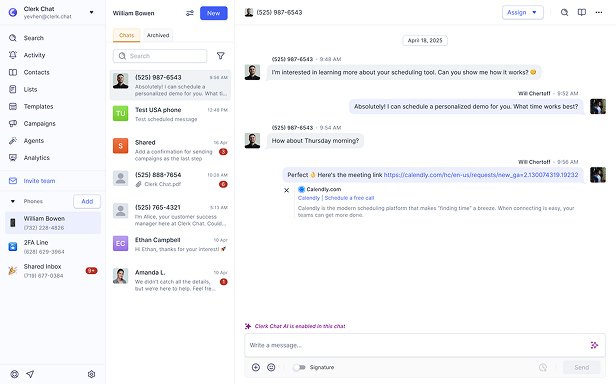
If the people in your call groups also handle customer texts, you need a shared messaging layer on the same numbers. See how teams text customers from Teams with shared inboxes that mirror how call groups share calls.
Frequently Asked Questions
What is a call group in Microsoft Teams?
A call group is a list of up to 25 colleagues who can answer calls on a Teams Phone user’s behalf. The owner chooses whether calls forward to the group, ring the group at the same time, or go to the group when unanswered, and whether members ring all at once or in order.
How many people can be in a Teams call group?
Each call group can have up to 25 members. A user can own one call group and be a member of up to 25 call groups.
Why can’t I set an ordered ring for my call group?
Ordered ringing only works with five or fewer members. If you add a sixth member, Teams automatically switches the ring order to Everyone at once.
Can I add an external phone number to a call group?
No. Microsoft says call group members must be people from your organization, and phone numbers are not supported. To ring an outside number, use simultaneous ring or call forwarding instead.
Can I manage Teams call groups from my phone?
Microsoft 365 Roadmap ID 578860 adds call group management to Teams on iOS and Android, with general availability planned for December 2026. Once available, users can add or remove members, set how the group rings, and choose forwarding or simultaneous ring from mobile.
What license do call groups require?
Users must have a Microsoft Teams Phone license, and the owner and members must be in Teams Only mode. Admins can turn the feature on or off with the AllowCallGroups setting in the Teams calling policy.
Why are call group members not getting notified?
Microsoft says call group notifications are off by default for members. Each member turns them on from the Calls app quick settings menu. On mobile, notifications only arrive when the device is set for banner and ring.
Can a call group answer texts sent to my number?
No. Call groups share voice calls only. Native texting in Teams is a one-to-one chat on eligible Calling Plan numbers in the United States and Canada, and there is no shared group option for messages. Teams that need shared texting add a messaging layer on the same numbers.
The Bottom Line
Teams call groups are the simplest way to let a few colleagues cover one person’s line. The rules are fixed: one group per owner, up to 25 internal members, ordered ringing only up to five, and a Teams Phone license for everyone involved. Roadmap ID 578860 brings call group management to Teams mobile in December 2026, which makes the feature easier to adjust on the go without changing those limits.
What a call group will not do is share the texts that land on the same number. If your covered lines also hear from customers by text, plan the messaging side alongside your call routing. Book a demo and we will map which lines need call groups, which need queues, and which need a shared inbox for texts.
#Subscribe
Get product updates in your inbox
Tutorials, features, and Clerk Chat news delivered straight to you.