









Teams Phone Auto Attendant: Shared Voicemail, Menus, and Native Limits


Microsoft Teams Phone auto attendants are about to get more visible. On July 31, 2026, Message Center MC1443511 announced that auto attendant shared voicemails will surface directly in the Teams Queues app. For organizations that route calls through auto attendants before they reach queues or people, this means one less shared mailbox to check and one more reason to license your leads with Teams Premium.
That is a practical quality-of-life update for teams managing inbound voice operations. It is also a bounded one. The Queues app Auto Attendants tab requires Teams Premium. Voicemail history is capped at 3,000 entries or six months. And the auto attendant number is still a resource account, which means it cannot send native SMS.
This guide covers what Microsoft shipped for auto attendant voicemail in August 2026, how auto attendants actually work, the licensing model, the menu and hours features admins rely on, and the native limits that still require a workaround: no SMS on the AA number, no trunk transfers between Calling Plan, Operator Connect, and Direct Routing, and the November 2025 outbound PSTN licensing change that caught resource account callbacks off guard.
If you run Teams Phone auto attendants, this is what changed this month, and what still requires a messaging layer outside native voice apps.
In this article:
What a Teams Phone Auto Attendant Actually Is
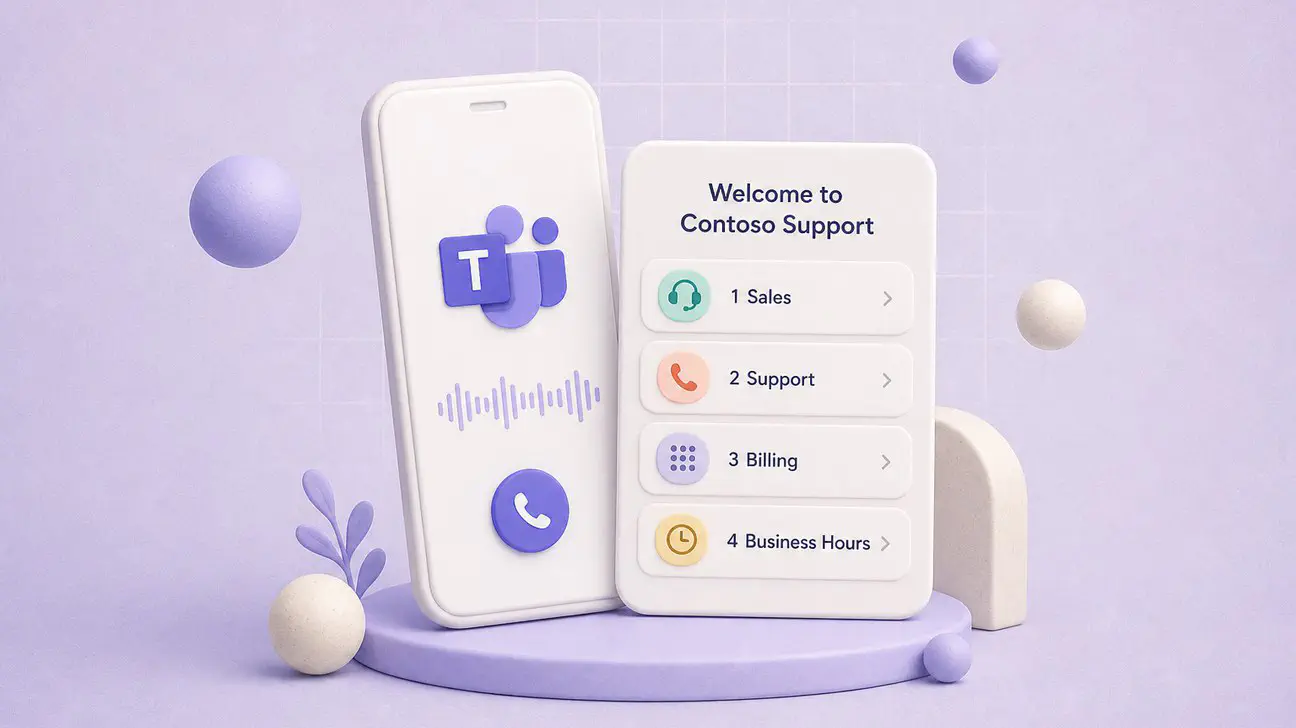
A Teams Phone auto attendant is the digital receptionist for your organization. Callers hear a greeting, press buttons to navigate a menu, and get routed to a person, a call queue, voicemail, or another auto attendant. It is the layer in front of everything else.
Microsoft’s auto attendant setup documentation describes the feature set:
- Greetings. Audio files (WAV, MP3, or WMA, max 5 MB) or text-to-speech (up to 1,000 characters in the selected language, not translated automatically).
- Keypad menus. 0-9, *, and # as menu options, with optional voice input when the language supports speech recognition.
- Call flows. Business hours, after hours, and holiday schedules, each with their own greeting, menu, and routing rules.
- Directory search. Dial by name or dial by extension, with the ability to include or exclude Microsoft 365 groups. New users can take up to 36 hours to appear in the directory.
- Operator destination. A fallback person or queue for when the caller presses 0 or says “operator.”
- Redirect targets. Person in the org (must be voice enabled), voice app (another AA or a call queue), resource account, external phone number, voicemail of a Microsoft 365 group (must have external email enabled), or announcement audio or text (then return to menu).
Auto attendants can be nested. A caller can start with a main menu, press 1 for sales, hit a second auto attendant menu, press 2 for enterprise sales, and land in a call queue. Only the first auto attendant in the chain needs a resource account and phone number. Nested attendants that only receive calls from another voice app do not need their own resource account or number.
What Microsoft Shipped for Auto Attendant Voicemail in August 2026
MC1443511 (Roadmap ID 567457) is the news. Microsoft positions it as a way to view and manage auto attendant shared voicemails directly in the Teams Queues app. Previously, organizations managed auto attendant voicemails through shared mailboxes or other workflows outside Teams. This update provides a centralized experience for teams to review, triage, and respond to customer voicemail messages more efficiently.
The rollout schedule Microsoft published is:
| Ring | Start | Expected completion |
|---|---|---|
| Targeted Release | Mid-August 2026 | Mid-August 2026 |
| General Availability (Worldwide) | Late August 2026 | Late August 2026 |
As of September 1, 2026, the feature has rolled out to most tenants. Users who have access will see a new Auto Attendants tab in the Queues app. The tab shows voicemail history for auto attendants they are authorized to access, with the following capabilities:
- Play voicemail messages. Audio playback directly in the app.
- Review transcripts. When transcription is enabled on the auto attendant, the text appears alongside the audio.
- Track voicemail handling. Statuses include Unresolved, In Progress, and Resolved. Users can filter by status.
- Mark urgent. Flagging messages that need immediate follow-up.
This is not a separate product. It is an extension of the Queues app, which already covered call queue history, recording, and transcription as of August 2026. The auto attendant voicemail feature uses the same app, the same license requirement, and the same admin permission model.
How Shared Voicemail in the Queues App Works
Auto attendant voicemail history in the Queues app is controlled by a Shared Call History template. The template is created once, assigned to one or more auto attendants, and defines who can see the voicemail history.
Microsoft’s Shared Call History planning guide explains that the same template type is used for both call queues and auto attendants, but the permission model differs slightly. For auto attendants, the template includes:
- Auto attendant and shared voicemails permissions. Admins choose one of two levels: Authorized users only, or Authorized users plus Microsoft 365 group members.
- Authorized users. The list of individual users who can access voicemail history, managed in the Teams admin center.
- Microsoft 365 group members. If the second permission level is selected, members of the group associated with the auto attendant voicemail destination can also see history.
The template is created in the Teams admin center under Voice then Templates and resources, selecting Shared Call History as the template type. Once created, the template is assigned to the auto attendant at any location where calls redirect to Voicemail. That can be in business hours, after hours, or holiday call flows.
One constraint matters: you cannot have a different Shared Call History template on business hours, after hours, or holiday call flows if the same shared voicemail destination is used. The template is assigned to the voicemail destination, not to the call flow.
Voicemail history shows the last 3,000 entries, or six months of calls, per auto attendant. Beyond that, older records age out. Authorized users and voicemail group members need the Queues app to see the history, and the Queues app requires Teams Premium. That license gate is the part most admins miss on first read.
Licenses and Resource Accounts
Base auto attendant licensing has not changed. Microsoft’s prerequisites and licensing reference requires:
- At least one Teams Phone license in the tenant to enable Auto Attendant and Call Queue services.
- A free Microsoft Teams Phone Resource Account license for each resource account.
Every auto attendant that directly answers calls from the PSTN needs an associated resource account with a phone number. Resource accounts are disabled for sign-in. Chat and presence are not available on them, and even though presence may still appear in some interfaces, it does not update.
The Queues app access path is a separate license. Every user who needs to open auto attendant voicemail history, play recordings, or review transcripts in the Queues app needs a Teams Premium license. MC1443511 is explicit: the feature is available only to eligible users who have the required Teams Premium licensing.
That is the licensing catch. Teams Phone plus a Resource Account license gets you the auto attendant. Teams Premium on the people who need the Queues app gets you the in-app voicemail view. If your supervisors and team leads do not have Teams Premium, they will not see the Auto Attendants tab in the Queues app, even if the voicemails are landing in a shared mailbox and the Shared Call History template is correctly assigned.
A related Queues app update landed in the same window. MC1401299 added automatic recording and transcription for call queues, also accessed through the Queues app, also requiring Teams Premium for the people who need to view the recordings. It is the same app, the same license gate, and the same question admins have to answer: who needs operational visibility into voice applications, and do they have the right SKU?
Menus, Hours, Holidays, and Dial-by-Name
Auto attendants are menu-driven. The admin setup path offers two modes: Quick setup and Advanced setup. Quick setup is the streamlined path for simple attendants with minimal branching. Advanced setup exposes the full feature set, including business hours, after hours, holiday schedules, and nested menu options.
Business hours and after hours. You define when your organization is open, and the auto attendant plays different greetings and routes calls differently based on the current time and day. Business hours can vary by day of the week. After hours can send callers to voicemail, an on-call queue, or a different auto attendant that handles off-hours inquiries.
Holiday schedules. Holidays override business hours. You set the date range, upload or type a holiday greeting, and route calls to a destination that matches the holiday schedule. This is how you handle New Year’s Day, Thanksgiving, and company shutdown weeks without manually changing the auto attendant every time.
Keypad and voice options. Each menu option maps to a key (0-9, *, #) and optionally to a voice input phrase. When the language supports speech recognition, callers can say “sales” instead of pressing 1. Speech recognition availability depends on the language. Microsoft’s supported languages for auto attendants lists which languages have text-to-speech only and which support speech recognition as well.
Dial by name and dial by extension. Directory search lets callers reach people without going through a menu. Dial by name requires the caller to spell the person’s name on the keypad. Dial by extension requires the caller to know the person’s extension number. The dial scope can include or exclude Microsoft 365 groups, which is useful for filtering out executives, contractors, or disabled users. New users can take up to 36 hours to appear in the dial-by-name directory after they are added to the tenant and assigned a phone number.
Announcement-only attendants. Some auto attendants do not route calls at all. They play an announcement (office closed for renovation, temporary number change, weather closure) and then return to the menu or disconnect. This is a valid use case, and it does not require a human destination or a queue at the end.
These features are the reason organizations use auto attendants instead of letting every call ring a single person. The attendant is the routing logic, the schedule awareness, and the self-service directory that keeps simple calls from landing on a receptionist.
Native Limits: No SMS on the AA Number, Trunk Transfers, and Outbound PAYG
Three limits define what auto attendants cannot do, even with the August 2026 Queues app update.
1. No SMS on the auto attendant number.
Native Teams Phone SMS is limited to Microsoft Teams Calling Plan phone numbers in the United States, Puerto Rico, and Canada. It is one-to-one chat. MMS, attachments, emojis, stickers, and GIFs are not supported. Toll-free numbers, short codes, and alphanumeric sender IDs are not supported.
Microsoft’s SMS management documentation explains that SMS status “Not available” includes numbers assigned to a resource account, or numbers that do not support SMS. Auto attendants use resource accounts. Resource account numbers are the numbers Microsoft marks as not available for SMS.
That limit is the one that surprises organizations migrating from PBX systems where the main number could both ring and text. Microsoft staff repeated the constraint on a February 2026 Q&A thread about Zoom Phone Power Pack-style shared SMS on a healthcare call queue. The official answer: a call queue or auto attendant number is not expected to support SMS the way a user-assigned Calling Plan number can, and Teams does not offer a native shared SMS inbox, shared SMS history, or multi-agent texting on a queue or auto attendant number.
Shared Call History is a voice and voicemail feature. It is not a texting feature. The August 2026 Queues app update does not change that. You can now keep a Queues app record of the voicemail after the caller leaves a message. You still cannot reply to the customer by SMS from the same public auto attendant number.
2. Trunk transfers are not supported across Calling Plan, Operator Connect, and Direct Routing.
This is a broader voice-application limit, not an auto attendant-only one. Microsoft’s prerequisites and licensing reference states that transfers between Calling Plan, Operator Connect, and Direct Routing trunks are not supported. If your auto attendant sits on one PSTN path and needs to transfer calls to agents or queues on a different path, plan the transfer logic before you treat voicemail as the hard part.
3. November 2025 outbound PSTN licensing change for resource accounts.
On November 1, 2025, Calling Plan licenses on resource accounts stopped covering on-behalf-of PSTN outbound calls. If an auto attendant does any of the following, the resource account needs more than the free Teams Phone Resource Account license:
- Transfer calls to an external phone number.
- Use the auto attendant for representative on-behalf-of outbound calling line ID.
For Microsoft-provided numbers, that extra assignment is a funded pay-as-you-go license or Communications Credits (or telco pay-as-you-go overage for New Commerce customers). Operator Connect numbers have no extra Microsoft license for those scenarios, but the matching Message Center notice told Operator Connect customers to confirm the same outbound cases with their carrier. Direct Routing numbers are unchanged: they need an online voice routing policy, and phone number assignment is optional.
If you turned on Queues app voicemail this month and external transfers or on-behalf-of outbound started failing last year, those are separate switches. Voicemail visibility does not restore the old Calling Plan coverage on the resource account.
Auto Attendant vs Call Queue vs Shared Calling vs Multi-Line
These four Teams Phone features get mixed together because they all involve routing or number management. They solve different problems.
| Feature | What it is | Who owns the number | Fits an auto attendant? |
|---|---|---|---|
| Auto attendant | A menu and routing layer. Callers hear a greeting, press buttons, and get routed to a person, queue, voicemail, or another attendant. | A resource account assigned to the auto attendant (for attendants that answer calls directly). | This is the auto attendant. |
| Call queue | A waiting room. Callers hold. Representatives answer in attendant, serial, round robin, or longest-idle order. | A resource account assigned to the queue (for queues that answer calls directly). | Different feature. Call queues are what auto attendants route to. |
| Shared Calling | Users have no dedicated PSTN number. Inbound and outbound PSTN uses the phone number of a resource account associated with an auto attendant. Recipients see the auto attendant caller ID. | The auto attendant resource account. | Shared Calling is a user calling policy, not a menu layer. It uses the auto attendant number for outbound caller ID. |
| Multi-line | One user can hold up to 11 numbers: one primary, one private, and up to nine alternate lines. | The user. | Alternate numbers are direct user lines only and cannot be added to call queues or auto attendants. |
Shared Calling is the cost and number-inventory option for light PSTN users. Microsoft’s Shared Calling plan is explicit: do not assign a phone number to a Shared Calling user; use the auto attendant resource account instead. That is a short contrast, not a substitute for a menu. If callers need to press 1 for sales and 2 for support, you still need an auto attendant.
Multi-line is the opposite shape. It gives one person several of their own numbers. It does not turn those alternate lines into auto attendant or queue identities. If you need a departmental number that routes to a menu, assign a resource account number to the auto attendant. Do not hang that number on a user as an alternate line and expect to add it to the attendant later. Our Teams Phone multiple lines on mobile guide covers the user-line side of that split.
Native Auto Attendants vs a Teams Messaging Layer
Native auto attendants are a voice product. The August 2026 release makes them a better-managed voice product. You can route voicemails to a shared mailbox, surface them in the Queues app, optionally transcribe them, and let authorized users (with Teams Premium) review them in the same app they use for call queue operations.
That is the ceiling. The auto attendant number is still a resource account. Resource accounts do not sign in, do not chat, and do not get native SMS. Shared Call History is missed calls, answered calls, and voicemail, not a shared text thread. Native SMS, where it exists at all, is a one-to-one conversation on a user-assigned Calling Plan number in the US, Puerto Rico, and Canada.
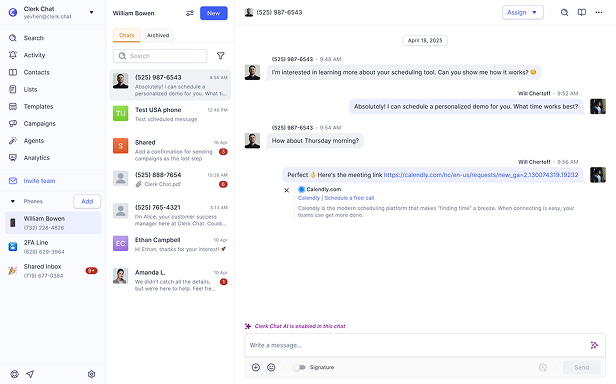
Clerk Chat sits next to that voice stack as a Teams messaging layer. The point is not to replace the auto attendant, the Shared Call History template, or the Queues app voicemail view. It is to cover the public number the auto attendant still cannot text from, and the shared inbox Teams still does not ship:
- SMS and MMS on Teams Phone numbers, including numbers that are not native Calling Plan SMS numbers.
- A shared SMS inbox so more than one coordinator can see and reply to the same customer thread.
- The same Teams workspace for voice follow-up and text follow-up, instead of a side app the auto attendant never sees.
If your operation is voice-only, assign the Shared Call History template, license your leads with Teams Premium, and leave the messaging question alone. If customers already text the number on the door, or you are migrating from a PBX that treated the main number as both a voice line and a shared SMS line, native Teams Phone still does not close that gap. Surfacing voicemail in the Queues app does not create a text channel on the resource account.
Frequently Asked Questions
What is a Teams Phone auto attendant?
A Teams Phone auto attendant is a digital receptionist that answers calls, plays greetings, presents keypad or voice menus, and routes callers to people, queues, voicemail, or other auto attendants. It handles business hours, after hours, and holiday schedules, with optional dial-by-name and dial-by-extension directory search.
What licenses are required for a Teams Phone auto attendant?
The tenant needs at least one Teams Phone license to enable the Auto Attendant service. Each auto attendant that directly answers calls needs a resource account with a free Microsoft Teams Phone Resource Account license. Authorized users who need to view auto attendant voicemail history in the Queues app need a Teams Premium license.
How do I enable shared voicemail in the Queues app for an auto attendant?
Create a Shared Call History template in the Teams admin center under Voice then Templates and resources, selecting Shared Call History as the template type. Choose the permission level (Authorized users only, or Authorized users plus Microsoft 365 group members). Assign the template to the auto attendant at any location where calls redirect to Voicemail. Authorized users need Teams Premium to see the Auto Attendants tab in the Queues app.
Can you send SMS from a Teams Phone auto attendant number?
No. Native SMS in Teams is limited to user-assigned Calling Plan numbers in the United States, Puerto Rico, and Canada, in one-to-one chat, without MMS. Microsoft marks SMS as not available on resource account numbers. Auto attendants use resource accounts, so the public auto attendant number is not an SMS number. Shared Call History is voice and voicemail, not texting. For messaging on Teams numbers, see the Teams integration.
What is the difference between an auto attendant and a call queue?
An auto attendant is a menu and routing layer. Callers press buttons or speak commands and get routed to a destination. A call queue is a waiting room. Callers hold while the system routes them to the next available representative. Auto attendants often route to call queues, but they are separate voice applications with separate resource accounts if both answer calls directly.
Does the auto attendant voicemail feature require Teams Premium?
The auto attendant itself does not require Teams Premium. Voicemails land in a shared mailbox whether or not the Queues app is involved. Authorized users who need to view, play, transcribe, and triage those voicemails in the Queues app need a Teams Premium license. Without Teams Premium, users will not see the Auto Attendants tab in the Queues app.
When did Microsoft roll out auto attendant voicemail in the Queues app?
Microsoft announced the feature on July 31, 2026, in Message Center MC1443511 (Roadmap ID 567457). Targeted Release began in mid-August 2026, and General Availability (Worldwide) began in late August 2026. As of September 1, 2026, the feature has rolled out to most tenants.
Can a Teams Phone multi-line number be added to an auto attendant?
Not an alternate line. Microsoft’s multi-line documentation says alternate numbers are direct user lines only and cannot be added to call queues or auto attendants. An auto attendant that answers PSTN calls uses a resource account number, not a user’s alternate line.
The Bottom Line
August 2026 gave Teams Phone auto attendants a native voicemail management path in the Queues app. Shared voicemails surface alongside call queue history, with transcription, status tracking, and urgent flags if you assign the right Shared Call History template and license the people who need access with Teams Premium. Voicemail history is capped at 3,000 entries or six months per auto attendant.
The limits around that release are the ones that were already true of native auto attendants. Resource account numbers still cannot send SMS. Alternate multi-line numbers still cannot join an auto attendant. Trunk transfers between Calling Plan, Operator Connect, and Direct Routing are still not supported. Calling Plan licenses on resource accounts still do not cover external transfers or on-behalf-of PSTN, which is why PAYG or Communications Credits remain an auto attendant ops item, not a voicemail item.
Turn the feature on if you need centralized voicemail triage inside Microsoft 365. Do not treat it as shared texting, a shared SMS inbox, or a replacement for a Teams messaging layer on the public number.
Need the auto attendant number to text as well as ring, with a shared inbox the voice app still cannot provide? Book a demo and we will map your resource accounts, Queues app licensing, and what messaging from those same Teams numbers looks like without native SMS constraints.
#Subscribe
Get product updates in your inbox
Tutorials, features, and Clerk Chat news delivered straight to you.