












Teams Phone Multiple Phone Lines on Mobile: iOS and Android Guide


Microsoft Teams Phone users who manage multiple assigned phone numbers have spent years switching between devices or accepting that mobile calling meant using one line only. That constraint just ended.
Starting in late July 2026, Microsoft began rolling out multi-line calling support for the Teams mobile app on iOS and Android. Message Center MC1402306 and Microsoft 365 Roadmap item 565131 confirm that the worldwide rollout is now in progress, with general availability expected to complete by the end of August 2026.
If you run Teams Phone for a company where sales reps, support staff, or regional managers carry more than one assigned number, this is a meaningful upgrade. It also comes with specific requirements and limits that decide whether it solves your multi-line problem or simply extends a partial solution to a second platform.
This guide walks through who gets Teams Phone multiple phone lines on mobile, how the feature works, what admins need to review after rollout, and where the capability stops. If you manage Teams Phone infrastructure, this is what you need to know before your users start asking why the feature works for some colleagues and not others.
In this article:
What Microsoft Shipped: Multi-Line Calling on Teams Mobile
According to Microsoft’s official announcement, the update enables users to manage and use multiple assigned phone numbers directly within the Teams mobile app on iOS and Android. The capability extends existing multi-line functionality that was already available on Teams desktop to the mobile platform.
Three core functions define the feature:
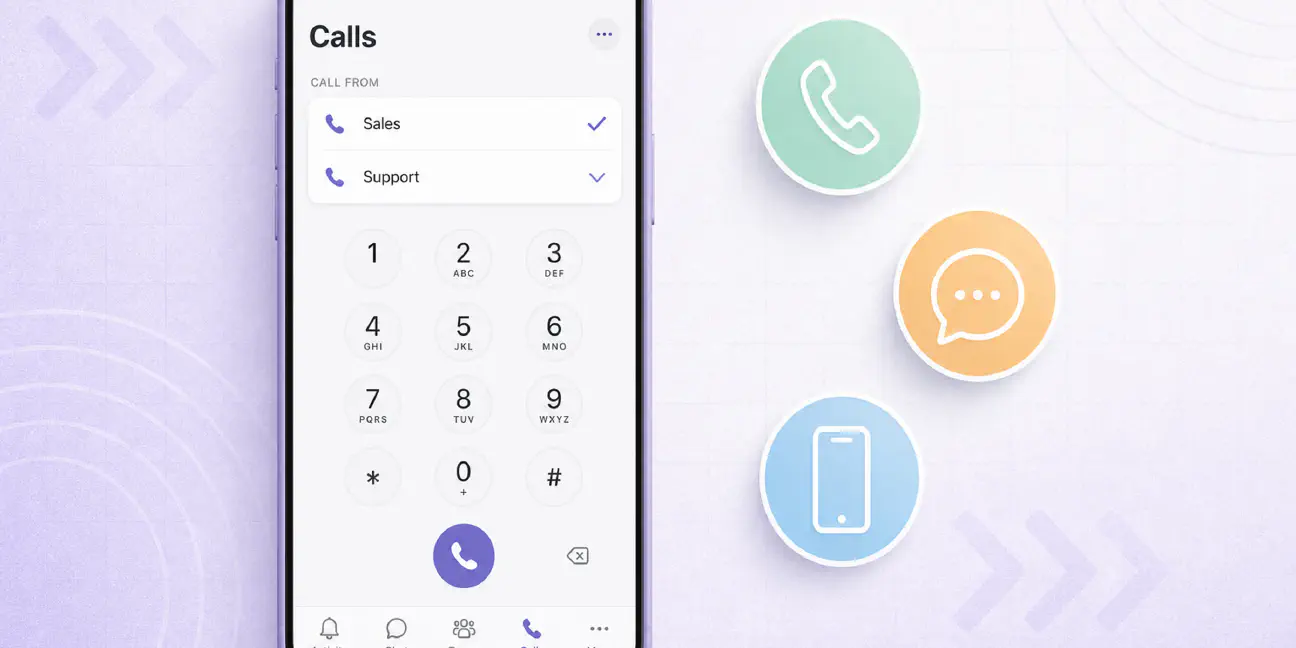
- Line selection when placing calls. Users can choose which phone number to use from the dial pad before placing an outbound call, giving them control over which caller ID the recipient sees.
- Return calls using a specific line. When returning a call from call history, users can select which of their assigned numbers to use, matching the line the original call came in on or choosing a different one.
- Unified call history with filtering. All calls across all assigned numbers appear in one call history, with the ability to filter by line to isolate activity on a specific number.
The feature is not a new product SKU or a licensed add-on. It is a platform update to the Teams mobile app for users who already have multiple phone numbers assigned in Teams Phone. If a user has two or more Teams Phone numbers today, the functionality becomes available to them as the rollout reaches their tenant. No user action is required to enable it.
Who Gets Multiple Phone Lines on Teams Mobile
Microsoft makes this explicit in the Message Center post: the feature is for users who are already assigned multiple phone numbers in Teams Phone. That means two things.
First, the user must have an active Teams Phone license. This can be a standalone Teams Phone license, a Microsoft 365 E5 bundle that includes Teams Phone, or a Teams Phone add-on attached to a qualifying base license. Users without Teams Phone do not have assigned calling numbers, so multi-line calling does not apply.
Second, the user must have two or more phone numbers assigned to them in the Teams admin center. One number does not trigger the multi-line interface. A single user with a single number continues to see the standard calling experience. The multi-line selector and filtering options only appear for users with more than one assigned number.
Assignment happens in the Teams admin center under Users, then Manage users, selecting the user, and reviewing their assigned phone numbers under the Account tab. If you script number assignments through PowerShell, the Set-CsPhoneNumberAssignment and Get-CsPhoneNumberAssignment cmdlets control what is assigned to each identity.
The feature does not distinguish between number sources. Whether a number came from a Microsoft Calling Plan, Operator Connect, or Direct Routing makes no difference to the multi-line interface. If the user has multiple numbers assigned, they get multi-line support on mobile.
How Multi-Line Calling Works in the Teams Mobile App
The user experience is straightforward. When a user who has multiple assigned phone numbers opens the Calls app inside Teams on iOS or Android, they see their assigned lines listed. From the dial pad, a dropdown or selector lets the user choose which line to use before placing the call. The selected number becomes the outbound caller ID for that call.
When returning a call from call history, the user can tap the call entry and select which of their assigned lines to use for the return call. This is useful when the original inbound call came to a specific number and the user wants to maintain continuity, or when they want to use a different line for other reasons (geographic caller ID, departmental routing, or personal preference).
Call history shows all calls across all assigned numbers in one unified list. A filter option allows the user to narrow the view to show only calls associated with a specific line. This makes it possible to review activity on one number without manually scanning through calls from the others.
Notifications for inbound calls show which line is ringing, so the user knows which number the caller dialed before answering. This context helps users decide how to handle the call based on which identity or department the number represents.
The interface does not introduce new calling features. It gives users with multiple numbers the ability to select and manage them on mobile in the same way they already could on desktop. No admin configuration is required to turn on the feature. It activates automatically for eligible users as the rollout reaches their tenant.
Rollout Timeline and Updated Availability
Microsoft originally announced that the rollout would complete by mid-August 2026. On August 18, 2026, Microsoft updated the timeline in Message Center MC1402306. The revised schedule shows:
- Rollout start: Late July 2026
- Expected completion: End of August 2026
As of August 21, 2026, the rollout is in progress. Tenants are receiving the update on a staged basis, which means some users may already see multi-line options on mobile while others in different tenants are still waiting. Microsoft does not provide per-tenant ETAs for feature rollouts. The standard guidance is to monitor the Message Center for updates and allow the rollout to complete before escalating if the feature has not appeared.
If your organization has users with multiple assigned numbers and the feature has not yet appeared on mobile, the most likely explanation is that your tenant is in a later rollout wave. The capability does not require admin activation, so there is no switch to flip. Once the rollout reaches your tenant, users with multiple numbers will see the interface automatically.
What Admins Should Review After Rollout
Microsoft’s guidance in MC1402306 makes it clear that no admin action is required for the rollout itself. However, the arrival of multi-line calling on mobile creates a practical checkpoint for reviewing how numbers are assigned and whether those assignments still match business needs.
Microsoft recommends that admins consider the following after the feature is live:
| Admin Task | Why It Matters |
|---|---|
| Review which users require multiple phone numbers | Not every user assigned multiple numbers today still needs them. Mobile multi-line calling makes those assignments more visible to users, which can surface questions from staff who no longer need a second line or who now want one. |
| Assign and manage phone numbers in the Teams admin center | If the rollout prompts new requests for multi-line access, this is the time to evaluate whether additional users should receive a second number. Number inventory and assignment logic should be reviewed before making changes. |
| Ensure each assigned number has a valid emergency address | Every phone number assigned to a user in Teams Phone must have an associated emergency address for E911 compliance. When users have multiple numbers, each number must have its own valid address. The Teams admin center flags numbers without emergency addresses, and those assignments will fail validation until corrected. |
| Confirm compliance with regional telecommunications requirements | Some regions impose restrictions on who can hold certain types of numbers or require specific registration steps for business calling. If your deployment spans multiple countries or uses local numbers in regions with strict telecom rules, verify that multi-line assignments comply with those regulations. |
These are not new requirements. Multi-line calling on mobile does not change the rules around number assignment, emergency addresses, or telecom compliance. It simply makes existing multi-line assignments more functional on mobile, which can expose gaps that were already present.
If you have not audited phone number assignments recently, this rollout is a reasonable trigger to do so. Users with access to multiple lines on mobile will use them, and any configuration issues that were invisible before will become support tickets now.
What Multi-Line Calling on Mobile Does Not Include
This is a calling feature, not a messaging feature. Multi-line support on Teams mobile applies to placing calls, returning calls, and reviewing call history. It does not extend to SMS.
If your organization uses native Teams texting, the capability Microsoft introduced for Calling Plan numbers in the US, Puerto Rico, and Canada, the multi-line interface does not give users the ability to choose which number to send a text from. It is limited to one-to-one text conversations from the assigned Calling Plan number, and the multi-line selector does not appear in the SMS chat interface.
For businesses that need to text from multiple lines, whether on mobile or desktop, that requires adding texting to Teams that operates outside of Microsoft’s native SMS feature. Our breakdown of how native Teams texting works covers exactly what Microsoft’s built-in texting supports and where it stops.
Multi-line calling also does not introduce new calling capabilities. Users cannot merge calls across lines, transfer a call from one line to another mid-conversation, or forward calls from one assigned number to a different assigned number on the fly. The feature gives users the ability to select which line to use when placing or returning a call. Once the call is connected, it behaves like any other Teams Phone call.
Multi-Line on Mobile vs Multi-Line on Desktop
Microsoft already supported multi-line calling on Teams desktop before this rollout. The mobile update brings feature parity, not new functionality. A user with three assigned phone numbers could already choose which line to use when placing a call from Teams on Windows or Mac. Now they can do the same thing from Teams on iOS or Android.
The experience is nearly identical. The main difference is interface: desktop users select their outbound line from a dropdown in the dial pad or calling interface, while mobile users tap a selector in the Teams mobile Calls app. Call history filtering works the same way on both platforms.
For IT, this means the multi-line policies and number assignments you already configured for desktop users extend to mobile without additional setup. There is no separate mobile-specific configuration for multi-line calling. If a user can select between two numbers on desktop, they can now select between those same two numbers on mobile.
The rollout closes a gap. Before this update, users who needed to make calls from a secondary number while away from their desk had to carry a second device, use a personal phone, or accept that mobile calling meant using their primary Teams number only. That constraint no longer applies.
Multi-Line Calling and Bring Your Own Carrier
Microsoft’s multi-line calling feature works regardless of where your phone numbers came from. If your organization uses Microsoft Calling Plans, Operator Connect, or Direct Routing to provision numbers, the multi-line interface treats them the same way.
For businesses that adopted Direct Routing to bring their own carrier, this matters. Direct Routing is the most flexible path to Teams Phone because it allows you to choose your carrier, negotiate rates, and control number inventory outside of Microsoft’s system. That flexibility extends to multi-line scenarios.
If you have users with one number from a Calling Plan and a second number from Direct Routing, both numbers appear in the multi-line selector. If all your numbers came through Direct Routing with different session border controllers for redundancy, they all show up. The feature does not care about the SIP trunk or carrier behind each number. It presents the numbers assigned to the user and lets them choose which one to use.
For organizations using Clerk Chat’s Direct Routing as a service, this rollout integrates cleanly. Your users already have the ability to text from their Teams numbers through Clerk, and now they can manage multiple calling lines on mobile through Microsoft’s native interface. The two capabilities are complementary, not competitive.
How Multi-Line Calling Fits Into a Teams Phone Deployment
Multi-line support on mobile is useful in specific scenarios. It is most relevant for:
- Sales and support teams who manage regional or departmental numbers. A sales rep covering two territories may have a local caller ID for each. Being able to choose which number to call from on mobile gives them control over how they present to prospects and customers.
- Executives and managers with a personal line and a shared departmental line. A department head may have their own direct number plus a shared line that rolls to other staff when they are unavailable. Multi-line calling lets them choose which identity to use when placing outbound calls.
- Staff who handle multiple roles or brands. In holding companies or multi-brand organizations, individual staff may carry a number for each brand. Multi-line calling on mobile means they do not need separate devices or apps to make calls under the correct identity.
The feature does not create new use cases. It enables existing multi-line users to do on mobile what they could already do on desktop.
It is not a replacement for call queues, auto-attendants, or shared calling plans. If your business needs inbound calls to ring to multiple people, or routes calls through a menu system before reaching a person, those are different features. Multi-line calling is about giving an individual user the ability to place and return calls from more than one of their own assigned numbers.
For small deployments where most users have one number, this rollout changes nothing. For larger deployments where multi-line assignments are common, it removes a friction point that previously required workarounds.
Comparing Multi-Line Calling to Full Business Messaging
Multi-line calling solves one problem. It does not address the broader challenge most Teams Phone deployments face: managing customer communication across voice, SMS, and other messaging channels without leaving Teams.
Microsoft’s native capabilities give you voice calling and, for Calling Plan numbers in North America, basic SMS. Multi-line calling extends the voice side. Native SMS remains limited to single-line, one-to-one conversations with no support for MMS, group messaging, scheduling, or campaign sends. Our full breakdown of how native Teams texting works covers those constraints in detail.
For organizations that need more, Clerk Chat adds full business messaging to Teams Phone. That includes:
- SMS and MMS on any Teams Phone number. Whether your numbers came from Calling Plans, Operator Connect, or Direct Routing, and whether they are mobile, landline, or toll-free, Clerk enables texting and picture messaging.
- Multi-line texting. Users with multiple numbers can choose which line to text from, matching the outbound caller ID for texts to the line they used for calling.
- RCS business messaging. Verified sender branding, read receipts, and rich media support for customers on compatible devices.
- Mass texting and broadcast campaigns. Templates, scheduling, cohorts, and delivery reporting for businesses that send at volume.
- Shared inboxes and team assignment. Conversations can be assigned to team members, with internal notes and collaboration that does not leak into the customer thread.
- AI-powered SMS agents. Automated replies, qualification flows, and after-hours support that pulls from your knowledge base without requiring a human to respond.
Multi-line calling on mobile is a good update for Teams Phone. It does not replace the need for a real messaging platform if your business depends on texting customers, running campaigns, or managing support conversations at scale.


Frequently Asked Questions
Does Microsoft Teams Phone support multiple lines on mobile?
Yes. As of late July 2026, Microsoft Teams Phone supports multiple phone lines on the Teams mobile app for iOS and Android. Users who have more than one phone number assigned in Teams Phone can select which line to use when placing calls, return calls using a specific line, and view a unified call history with filtering by line.
How do I assign multiple phone numbers to a user in Teams Phone?
Assign multiple numbers in the Teams admin center under Users, then Manage users. Select the user, go to the Account tab, and assign additional phone numbers under the Assigned phone number section. You can also use the Set-CsPhoneNumberAssignment PowerShell cmdlet to assign numbers via script.
Can I text from multiple lines in Teams mobile?
Not with Microsoft’s native SMS feature. Multi-line calling on Teams mobile applies to voice calls only. Native Teams Phone SMS supports texting from a single Calling Plan number in one-to-one conversations. To text from multiple lines or send MMS, group texts, and campaigns, you need a third-party messaging platform like Clerk Chat.
Do I need a special license for multi-line calling on Teams mobile?
No. Multi-line calling is part of Teams Phone. If a user has a Teams Phone license and has multiple phone numbers assigned to them, the multi-line interface appears automatically on mobile as the rollout reaches your tenant. There is no separate license or add-on required.
Does multi-line calling on mobile work with Direct Routing?
Yes. Multi-line calling works with phone numbers from Microsoft Calling Plans, Operator Connect, and Direct Routing. The feature does not distinguish between number sources. If a user has multiple numbers assigned, regardless of how they were provisioned, the multi-line selector appears on mobile.
What is the rollout timeline for multi-line calling on Teams mobile?
Microsoft began rolling out multi-line calling support in late July 2026 and expects to complete the worldwide rollout by the end of August 2026. The rollout is staged, so tenants receive the update at different times. No admin action is required to enable the feature.
Do I need to configure anything for multi-line calling to work on mobile?
No. The feature activates automatically for users who have multiple phone numbers assigned in Teams Phone. There is no admin toggle or configuration step. Once the rollout reaches your tenant, eligible users will see the multi-line interface on their Teams mobile app.
Can users merge calls across multiple lines on Teams mobile?
No. Multi-line calling allows users to select which number to use when placing or returning a call. It does not enable merging calls across lines, transferring a call from one line to another mid-conversation, or forwarding calls between assigned numbers on the fly.
The Bottom Line
Microsoft’s multi-line calling update for Teams mobile is a practical improvement for Teams Phone deployments where staff carry more than one assigned number. It removes the need for workarounds that previously forced users to switch devices or accept single-line constraints when calling from mobile.
The feature does not change licensing, introduce new calling capabilities, or extend to SMS. It gives users the ability to do on mobile what they could already do on desktop: choose which of their assigned numbers to use when placing or returning a call, and review call history by line.
If your organization has users with multiple Teams Phone numbers, the rollout is automatic and requires no admin action. If the update raises questions from users about number assignments, emergency addresses, or texting from multiple lines, those are signals that a broader review of your Teams Phone setup may be overdue.
Need to add full business messaging to your Teams Phone deployment, including multi-line texting, MMS, and campaign sends? Book a demo and we will walk through your number inventory, licensing, and what messaging from Teams looks like without the constraints of Microsoft’s native SMS feature.
#Subscribe
Get product updates in your inbox
Tutorials, features, and Clerk Chat news delivered straight to you.