












Teams Phone Number: How to Get, Port, and Assign Numbers in Teams


A Teams license lets people chat and meet. It does not give anyone a phone number. Before a user can call a customer from Teams, an admin has to pick where the number comes from, verify the business, get or port the number, and assign it to the right person or service.
Each of those steps has rules that are easy to miss. Microsoft caps how many numbers a tenant can get, requires a one-time Know Your Customer (KYC) review before you buy or port numbers, and only lets some number types do certain jobs. A number that works fine for calls can still be the wrong pick for a call queue or for texting.
This guide covers the four places a Teams phone number can come from, how many numbers you can get, the KYC step, porting, assignment, and what each number type supports.
In this article:
What You Need Before a User Gets a Teams Phone Number
Microsoft’s PSTN connectivity options article says a user must be licensed for Teams Phone and also have a PSTN service from a provider. Teams Phone is the calling feature set. The PSTN service is what connects Teams to the public phone network and supplies the number.
You also need:
- An admin role. Teams Administrator, Teams Communications Administrator, or Teams Telephony Administrator can get, port, and assign numbers.
- The Voice menu. Microsoft’s number acquisition guide says the Voice option only appears in the Teams admin center after you buy at least one Enterprise E5 or E3 license, one Phone System add-on license, or one Audio Conferencing add-on license.
- A matching usage location. Microsoft’s guide to managing phone numbers for users says the number and the user’s usage location must be in the same country or region.
For how Teams Phone, Calling Plans, and the other add-ons stack up, see our guide to Microsoft Teams licenses.
Four Ways to Get a Teams Phone Number
Microsoft supports four PSTN connectivity models, and one tenant can use more than one at the same time.
| Option | Who supplies the number | What you need | Supports call queue and auto attendant numbers |
|---|---|---|---|
| Microsoft Calling Plan | Microsoft | A Calling Plan license | Yes |
| Operator Connect | A certified operator | A contract with that operator | Yes |
| Teams Phone Mobile | A certified mobile operator | A mobile operator contract, number tied to the user’s SIM | No |
| Direct Routing | Any PSTN carrier you choose | A carrier contract plus a certified Session Border Controller (SBC) | Yes |
Microsoft Calling Plan
Microsoft is the operator. PSTN access, numbers, support, and the U.S. emergency screening service all come from Microsoft, with a 99.999% reliability SLA. Microsoft’s country and region availability page lists three Calling Plan types: Domestic, International, and Pay-As-You-Go. The country a plan applies to comes from the user’s usage location in the Microsoft 365 admin center, not the billing address on your organization profile.
Microsoft’s acquisition guide lists 33 countries and regions where you can get Calling Plan numbers, including the United States and Puerto Rico, Canada, the United Kingdom, Mexico, New Zealand, Singapore, and South Africa.
Operator Connect
A certified carrier has already connected its network to Microsoft. You sign with the operator, enable it in the Teams admin center, and assign its numbers to users. The operator supplies the numbers, support, and SLA. Our Operator Connect guide covers how it works in more detail.
Teams Phone Mobile
The number on a user’s company SIM also becomes their Teams number, so one business number rings on the native dialer and in Teams. Microsoft notes that Teams Phone Mobile supports user numbers only. It cannot supply numbers for call queues, auto attendants, or Audio Conferencing. See our Teams Phone Mobile guide for how calls ring and which operators offer it.
Direct Routing
You bring any carrier and connect it through a certified SBC that you, an integrator, or a Direct Routing as a Service provider runs. It is the most flexible option and the most work. Our Direct Routing guide and Direct Routing vs Operator Connect comparison help you decide between the two.

How Many Teams Phone Numbers You Can Get from Microsoft
If Microsoft is your operator, the number of numbers you can acquire depends on your licenses. You need at least one Calling Plan license assigned in your tenant before you can get numbers from Microsoft at all.
From Microsoft’s acquisition guide:
- User numbers. Total Domestic and International Calling Plan licenses multiplied by 1.1, plus 10. Pay-As-You-Go Calling Plans add one number per license. Microsoft’s example: 30 users on Domestic or International plans and 20 on Pay-As-You-Go can get 63 numbers ((30 x 1.1) + 10 + 20).
- Toll and toll-free service numbers. These are for call queues, auto attendants, and conference bridges, and scale with your Teams Phone and Audio Conferencing licenses. For example, 1 to 25 licenses gets 5 numbers, 50 to 99 gets 20, and 1,000 to 1,249 gets 125.
- Toll-free billing. Toll-free numbers need a pay-as-you-go billing method (Communications Credits) before you can reserve and use them.
These limits do not count numbers you port in. If you need a call queue or auto attendant number, see our guides to Teams Phone call queues and the Teams Phone auto attendant.
Step 1: Complete Know Your Customer Verification
KYC is now a gate for both new and ported numbers. Microsoft required a one-time KYC onboarding for new phone number requests starting in August 2025 (MC1117815), then extended it to all port-in requests in every Calling Plan market starting in January 2026 (MC1191607, published December 2, 2025). Existing numbers are not affected, and a tenant that already finished KYC does not need to repeat it.
Microsoft’s Teams Phone KYC overview lays out the process:
- In the Teams admin center, go to Voice > Service configuration > Know Your Customer and select Add KYC information.
- Verify a business email address with a one-time code. It must belong to an individual on your tenant’s business domain. Distribution lists, free addresses such as Gmail or Outlook.com, and the default onmicrosoft.com domain are rejected.
- Enter your legal company name, business address, and a tax or registration number. U.S. companies use their nine-digit EIN. Canadian companies can use their nine-digit Business Number.
- Upload supporting documents that exactly match the company name, domain, and address. Microsoft says documents must be dated within the past 12 months and stay valid for at least two months after you submit.
Microsoft’s Calling Plan setup guide says most reviews finish within three business days, and advises waiting until the status reads Approved before acquiring or porting numbers. Start this step first, since nothing else moves until it clears.
Step 2: Get New Numbers or Port Existing Ones
Getting new numbers
In the Teams admin center, go to Voice > Phone numbers and select Add. Name the order, choose From Operator, then pick the country or region, the number type (User for a person, or Call Queue or Auto Attendant for a voice app), Microsoft as the operator, the quantity, and your search criteria. Once numbers come back, you have 10 minutes to place the order before they are released to other customers.
In some countries, or if you need specific numbers or area codes, the wizard sends the request to Microsoft’s phone number support team instead. Those orders show as Manual in Order History until support finishes them.
Porting numbers you already have
Microsoft’s porting guide starts at Voice > Phone numbers > Numbers > Port. U.S. and Canada numbers can use a newer porting wizard, while other regions use the classic one. A few rules from the guide:
- Enter numbers in 10-digit or E.164 format, or upload a CSV with one column headed PhoneNumber. Ranges are not supported.
- The Billing Telephone Number (BTN) must match what your current carrier has on file, and any freeze on the account must be lifted first, or the port is rejected.
- In a full port, every number tied to that BTN moves to Microsoft, including the BTN itself.
For carrier-side prep that applies to any port, see our guide to porting a phone number.
Step 3: Assign the Number
Microsoft gives two ways to assign a number in the Teams admin center:
- From the number list. Go to Voice > Phone numbers, pick an unassigned number, select Edit, and assign it to a user. For Direct Routing, this only works if you uploaded your Direct Routing numbers to Teams.
- From the user’s profile. Go to Users > Manage users, open the user’s Account tab, select Assign primary phone number, choose the number type, then pick the number.
Both paths let you set the emergency location. For Operator Connect and Teams Phone Mobile numbers, whether you can change it depends on the operator.
In PowerShell, use Set-CsPhoneNumberAssignment with -PhoneNumberType CallingPlan, OperatorConnect, or DirectRouting. Microsoft’s docs use OperatorConnect for Teams Phone Mobile numbers too:
Set-CsPhoneNumberAssignment -Identity user@contoso.com -PhoneNumber "+14255550101" -PhoneNumberType CallingPlan
Microsoft says it can take up to 24 hours for a user to be fully enabled. If one person needs more than one line, see our guide to multiple lines in Teams Phone.
What Each Teams Phone Number Type Supports
| Capability | Calling Plan | Operator Connect | Teams Phone Mobile | Direct Routing |
|---|---|---|---|---|
| User numbers | Yes | Yes | Yes | Yes |
| Call queue and auto attendant numbers | Yes | Yes | No | Yes |
| Audio Conferencing numbers | Yes | Yes | No | Yes |
| Microsoft’s native texting in Teams | U.S., Puerto Rico, and Canada only | No | No | No |
| Who runs the service | Microsoft | Operator and Microsoft | Mobile operator | You or your provider, with an SBC |
The texting row is where many admins get surprised. Microsoft’s SMS management article says native texting in Teams works only on Calling Plan numbers in the United States, including Puerto Rico, and Canada. It also needs Brand and Campaign registration (see our 10DLC guide) and a Teams, Teams Phone, and Calling Plan license on the user. Numbers assigned to a resource account, which is how call queues and auto attendants get their numbers, show an SMS status of Not available.
Picking a Number Source When Customers Also Text You
Calling is usually what drives the choice: where your users are, which carrier you already have, and whether you need an SBC. But the number you pick also decides whether customers can text it and get a reply in Teams.
- If you are on Operator Connect or Direct Routing, Microsoft’s native texting is not an option on those numbers.
- If your busiest numbers sit on call queues or auto attendants, those resource account numbers cannot text natively, even on a Calling Plan.
- If you work outside the U.S., Puerto Rico, and Canada, native texting is not available in Teams at all.
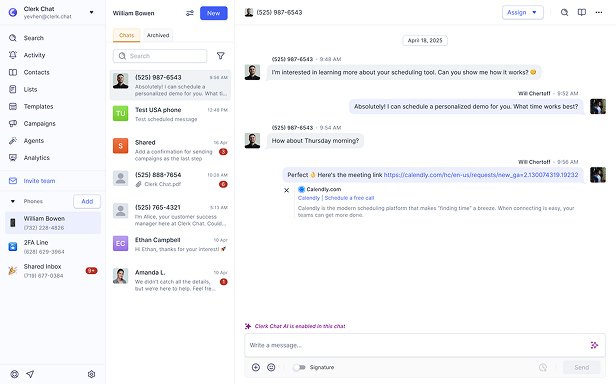
If the numbers your customers already know need to send and receive texts, you can keep your calling setup and add messaging on top. See how teams text customers from Teams on their existing business numbers, with shared inboxes for main lines and queues.
Frequently Asked Questions
How do I get a phone number in Microsoft Teams?
Assign the user a Teams Phone license, then get a number from one of four sources: a Microsoft Calling Plan, an Operator Connect operator, a Teams Phone Mobile operator, or your own carrier through Direct Routing. Complete KYC in the Teams admin center, add or port the number, then assign it under Voice > Phone numbers or the user’s profile.
Does Microsoft Teams come with a phone number?
No. Teams licenses do not include a phone number. You need Teams Phone plus a PSTN service from Microsoft or a third-party operator before a user can have a number.
Can I port my existing number to Teams?
Yes. Use Voice > Phone numbers > Numbers > Port in the Teams admin center. Since January 2026, Microsoft requires your organization to finish a one-time KYC review before any port-in request is processed.
How long does Teams KYC verification take?
Microsoft says most KYC reviews are completed within three business days. Wait until the status shows Approved before you acquire or port numbers.
How many phone numbers can I get from Microsoft?
For user numbers, multiply your Domestic and International Calling Plan licenses by 1.1 and add 10, then add one number per Pay-As-You-Go license. Toll and toll-free service numbers scale with your Teams Phone and Audio Conferencing licenses. Ported numbers do not count toward these limits.
Can a Teams phone number send text messages?
Only some can. Microsoft supports native texting only on Calling Plan numbers in the United States, including Puerto Rico, and Canada, after Brand and Campaign registration. Operator Connect, Direct Routing, Teams Phone Mobile, and resource account numbers cannot text natively.
The Bottom Line
A Teams phone number takes four decisions: where the number comes from, whether your KYC review has cleared, whether you buy new numbers or port the ones customers know, and who or what the number is assigned to. Calling Plans are the simplest, Operator Connect keeps your carrier, Teams Phone Mobile puts the number on the SIM, and Direct Routing gives you full control.
Before you lock in a source, check what else the number has to do. If customers text your main line or your queue numbers, that rules out native texting on most setups. Book a demo and we will map which numbers need calling, which need texting, and how to run both from Teams.
#Subscribe
Get product updates in your inbox
Tutorials, features, and Clerk Chat news delivered straight to you.